Application API keys
Overview
The Application API Keys page displays all API keys in the system. API keys provide programmatic access to Enterprise h2oGPTe.
Only administrators can view and manage API keys for all users. For programmatic API key management, expiration policies, and permission controls, see API Key Management.
Access the Application API keys page
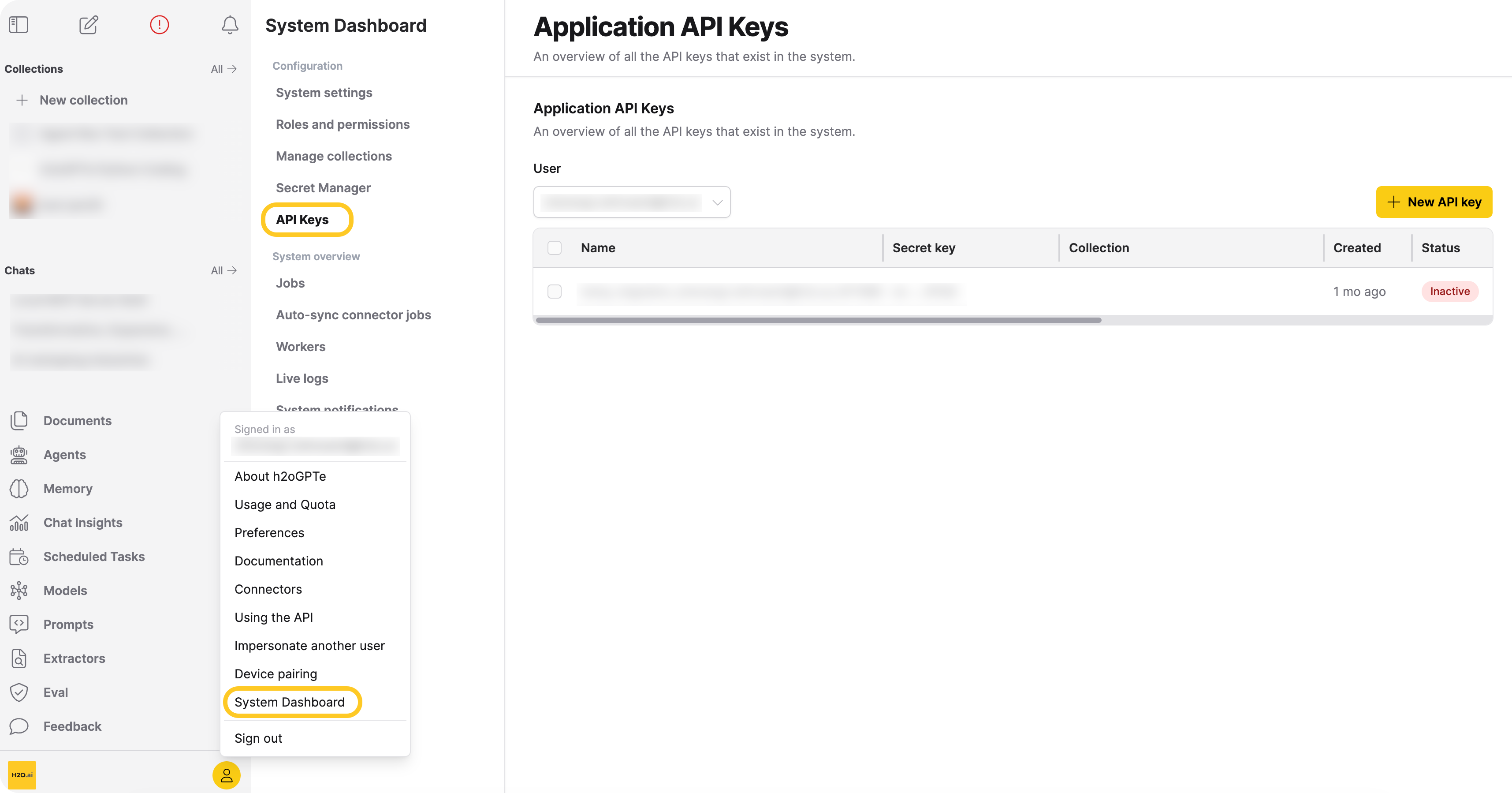
- In Enterprise h2oGPTe, click Account Circle.
- Select System Dashboard.
- In the Configuration section, click API Keys.
View API keys
- In the API Keys section, select a user from the User dropdown.
- View the table of API keys for that user.
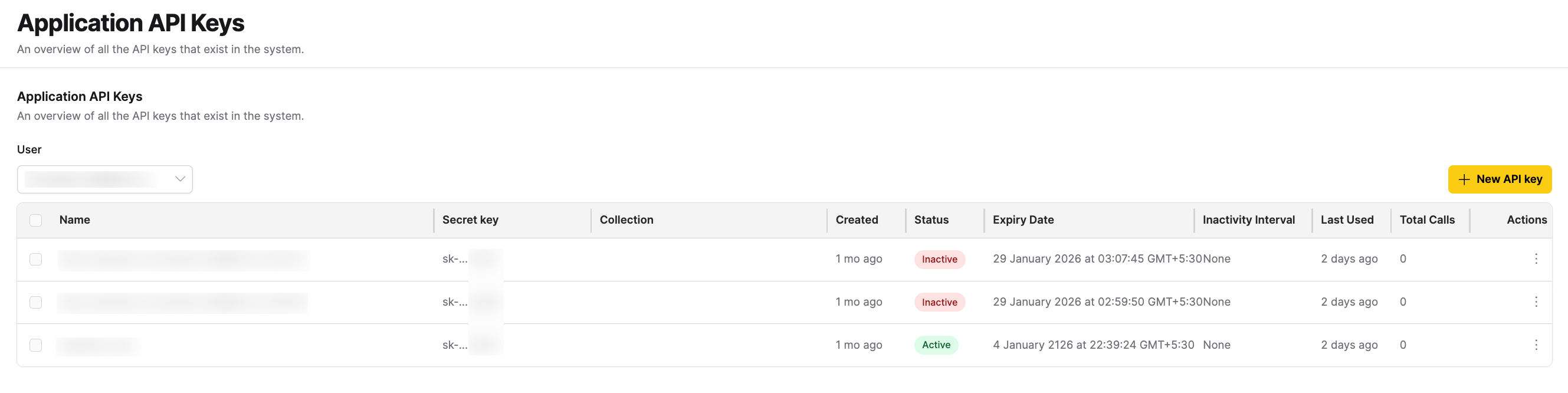
The table displays:
- Name: The API key name
- Secret key: The masked secret key
- Collection: The collection the key is restricted to (if applicable)
- Created: When the key was created
- Status: Active or Inactive
- Expiry Date: When the key expires (if set)
- Inactivity Interval: How long the key can remain unused before the system automatically deactivates it (if set)
- Last Used: When the key was used last
- Total Calls: The total number of API requests made using the key
- Actions: Options to manage the key
Create an API key
Only administrators can create API keys for users.
- In the API Keys section, select the user from the User dropdown.
- Click + New API key.
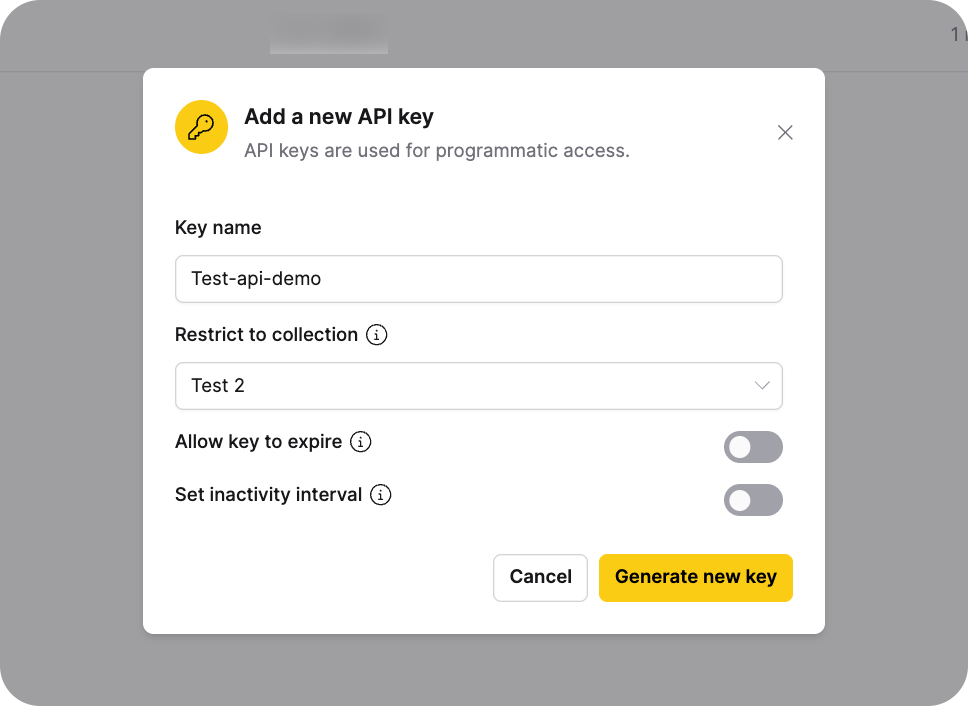
- Enter a key name.
- Optional: Restrict the key to a specific collection. The collection must be owned by the selected user. Leave it blank for a global key.
- Optional: Turn on Allow key to expire to set an expiration date on the API key. The expiration date must not exceed the global API key expiry limit.
- Optional: Turn on Set Inactivity Interval to automatically deactivate the API key after a period of inactivity.
- Click Generate new key.
- Copy and securely store the generated secret key.
important
The secret key is displayed only once when the API key is created. Store it securely, as it cannot be retrieved later.
Manage API keys
Only administrators can manage API keys. Use the Actions menu () for each API key to:
- Edit expiry
- Edit key inactivity interval
- Deactivate the key
Select the checkbox next to the API key, then click Delete.

note
To learn more about API keys, see APIs.
Feedback
- Submit and view feedback for this page
- Send feedback about Enterprise h2oGPTe to cloud-feedback@h2o.ai