Overview
MCP (Model Context Protocol) servers extend Enterprise h2oGPTe agents by providing access to external tools and services through a standardized protocol. This guide explains what MCP servers are and how to configure them in Enterprise h2oGPTe.
What are MCP servers?
MCP (Model Context Protocol) is an open standard designed to streamline and unify the way AI agents connect with external tools, APIs, databases, and software services. By acting as a bridge, MCP servers expose a set of functionalities such as data queries, automation tasks, or integration routines to Enterprise h2oGPTe agents in a predictable and secure manner.
This consistent interface allows agents to leverage a wide array of external capabilities, making it easy to add, update, or swap tools as your needs evolve, all without changing your core Enterprise h2oGPTe environment.
How MCP servers work:
- Agents discover available tools from MCP servers
- Users make requests through the agent interface
- Agents call the appropriate MCP tools
- MCP servers execute operations and return results
- Agents present results in conversational format
Benefits:
- Standardized integration across different tools
- Extend agent capabilities with specialized functionality
- Mix and match different MCP servers as needed
- Controlled access to external systems
Accessing MCP tools
All users can access and configure MCP tools in Enterprise h2oGPTe. To access MCP tools settings:
- Navigate to Agents in the main navigation.
- Select the Tools tab.
- Click New Tool to add a new MCP tool.
From the Tools tab, you can:
- View all configured MCP tools with details like tool name and owner information
- Add new local or remote MCP tools
- Edit existing tool configurations
- Delete tools you no longer need
- Manage environment variables for tools
- Select specific sub-tools from an MCP server
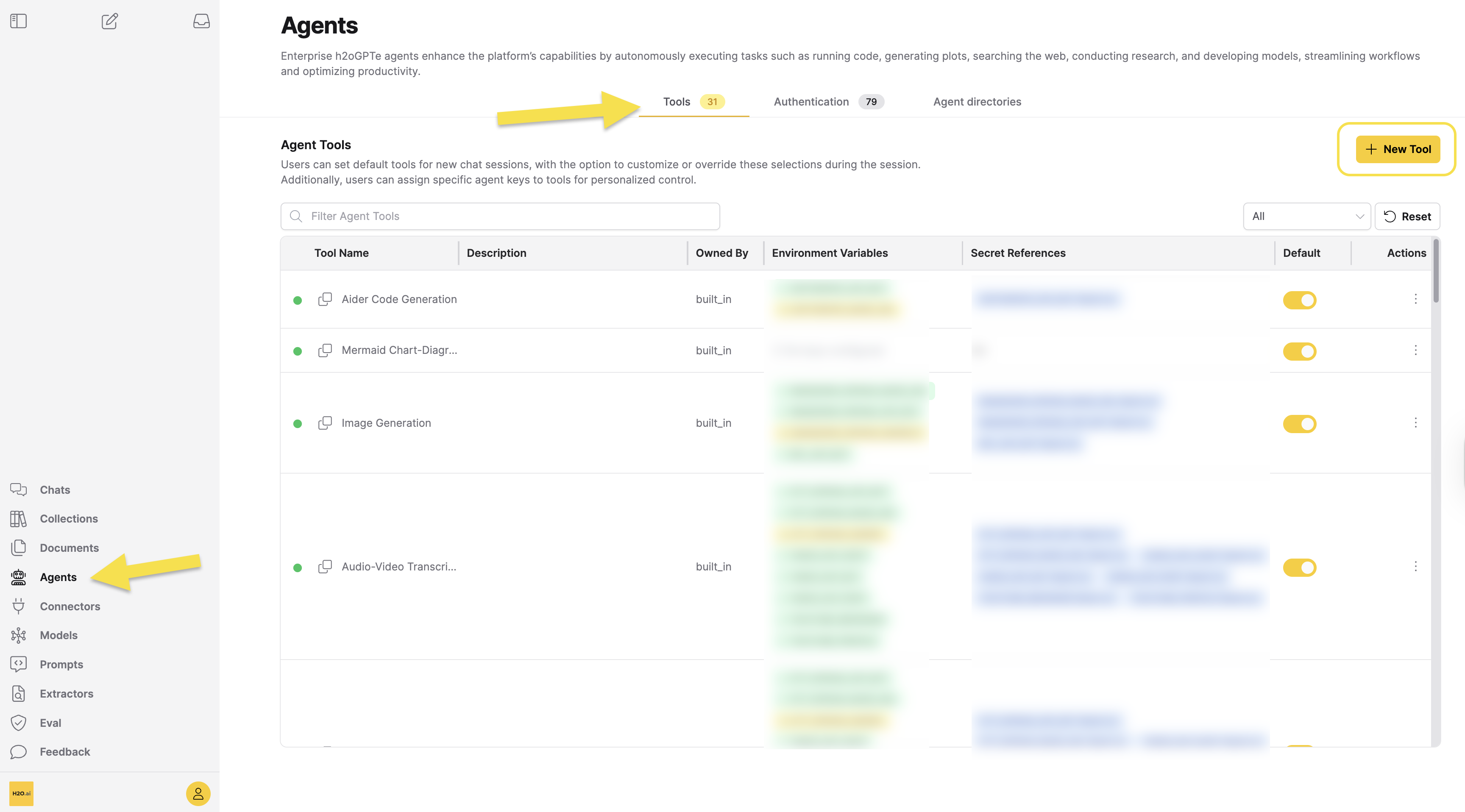
MCP tools are configured per user. Each user can customize which MCP tools are available in their agent conversations. Administrators can control which tools are visible and accessible to users through system settings and permissions, enabling centralized management of tool availability based on organizational policies and security requirements.
Sub-tool selection
You can use sub-tool selection with both local and remote MCP tools. For background on tool types, see Types of MCP integration.
MCP servers expose multiple tools. For example, a Playwright server provides browser_click, browser_type, browser_snapshot, and many others. By default, all tools from a server are available to the agent. Use sub-tool selection to enable only the tools you need and reduce unnecessary tool calls.
You can select sub-tools in three ways:
- During local tool creation: after uploading the ZIP file, Enterprise h2oGPTe automatically discovers available tools from your package. Select or clear individual tools from the list.
- During remote tool creation or editing: a Sub-tools section appears below the JSON configuration. Click Refresh sub-tools to list available tools from the server, then select or clear individual tools.
- From the Tools table: click the actions menu (three dots) on a custom MCP tool row, then click Select Sub-tools to open a quick selection dialog.
If you do not change the default selection, all discovered tools remain available.
Error and empty states
- If discovery fails because the server is unreachable or authentication fails, an error message appears. Verify your server configuration and credentials.
- If the server returns zero tools, a message indicates no tools were found.
Types of MCP integration
Enterprise h2oGPTe supports two types of MCP integration:
1. Local MCP Tools
Custom MCP server implementations that run locally in Enterprise h2oGPTe. Upload ZIP files containing your MCP server implementation.
Requirements:
- ZIP file containing an MCP entry point:
server.py(Python),index.ts(TypeScript), orindex.js(JavaScript); each tool directory must have one of these at its lowest level - Optional:
envs.jsonfor environment variable definitions - Optional:
description.mdfor tool documentation
Multi-tool archives:
- ZIP files can contain multiple tool directories, each with its own entry point
- During upload, Enterprise h2oGPTe automatically discovers all sub-tools in the archive
- You can select which sub-tools to enable before saving—deselected tools do not appear in agent conversations
- Limits: 100 MB maximum upload size, up to 20 sub-directories per archive
Each tool directory within the archive is limited to 500 files and 50 MB.
Use cases:
- Proprietary integrations (custom in-house tools)
- Custom business logic
- Offline functionality
Local MCP tools are ideal for custom integrations that need to run within your Enterprise h2oGPTe environment. They execute directly in the Enterprise h2oGPTe runtime, providing better performance and security for internal tools.
Local MCP Tool Configuration Dialog
Click + New Tool to open the menu options. From the drop-down, select Local MCP Tools.
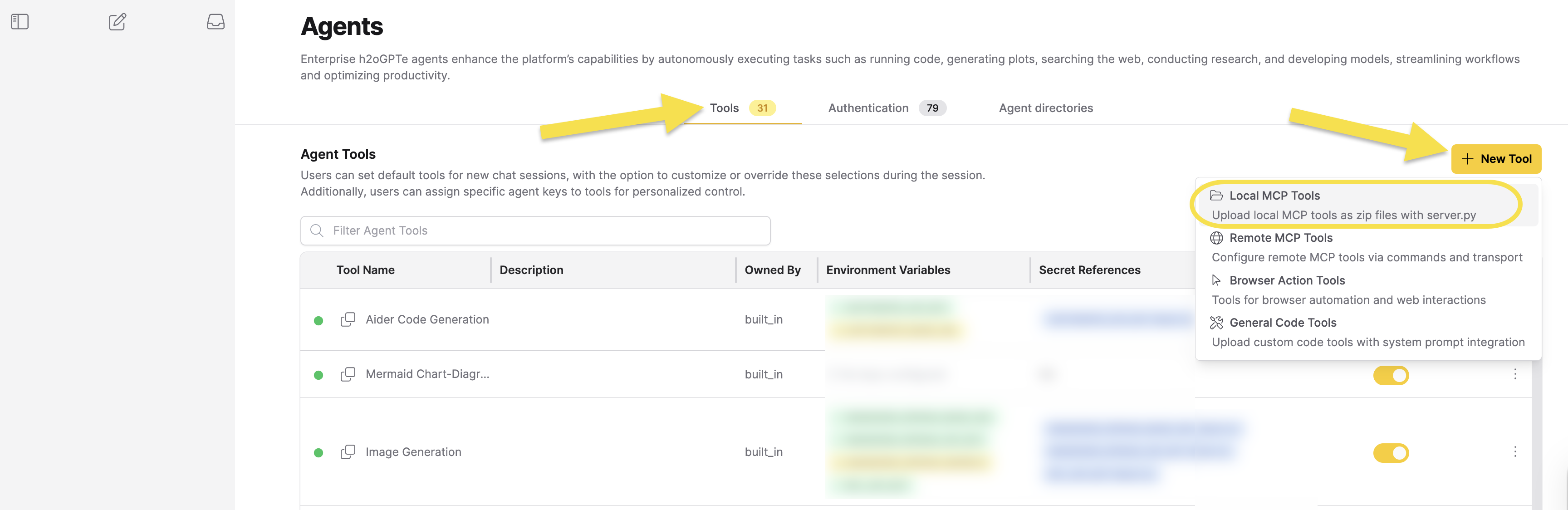
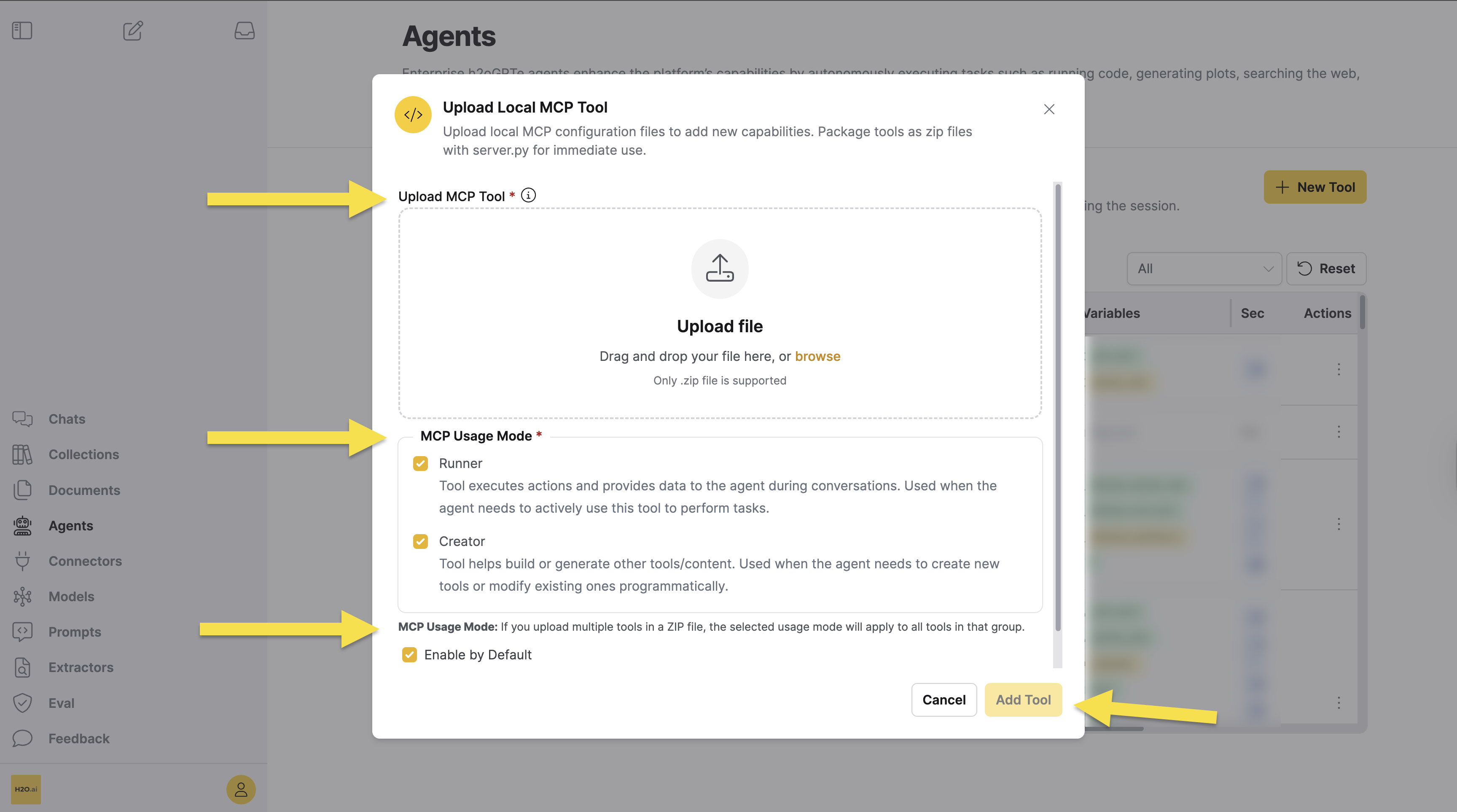
The configuration dialog appears:
Upload MCP Tool:
- Upload a ZIP file containing your MCP tool (maximum 100 MB)
- The ZIP can contain multiple tools, each in separate folders
- Each folder must contain an MCP entry point at its root level:
server.py,index.ts, orindex.js - Optional files:
envs.jsonanddescription.md - After uploading, sub-tool discovery runs automatically—select which tools to enable using the checkboxes that appear
MCP Usage Mode:
- Runner: Tool executes actions and provides data during conversations (default)
- Creator: Tool helps build or generate other tools or content programmatically
- You can select one or both modes. Most tools work best in Runner mode.
- Use Creator mode for tools that generate code, create files, or build other tools programmatically.
- If uploading multiple tools in a ZIP, the selected mode applies to all tools in that group.
Persistent Tool (if available):
- Ephemeral tools run only when needed
- Persistent tools stay active until terminated
Enable by Default:
- When enabled, the tool is automatically available in agent conversations
- When disabled, you must manually enable it per conversation
Sub-tool discovery:
When you upload a ZIP file, Enterprise h2oGPTe automatically inspects the package and discovers all available sub-tools. Each discovered tool appears as a checkbox so you can select which ones to enable. If no sub-tools are discovered, all tools in the package are enabled by default.
Click Add Tool to add the local MCP tool to Enterprise h2oGPTe.
2. Remote MCP Tools
MCP servers accessed over the network. Configure using JSON in the Enterprise h2oGPTe UI.
Configuration:
- JSON-based setup
- Multiple transport options: stdio, HTTP, SSE
- Environment variable management for credentials
Use cases:
- External service integrations
- Community MCP servers
- Cloud-based tools
Remote MCP tools connect to external MCP servers over the network. They support multiple transport protocols (stdio, HTTP, SSE) and can integrate with any MCP-compatible server.
Remote MCP Tool Configuration Dialog
Click + New Tool to open the menu options. From the drop-down, select Remote MCP Tools.
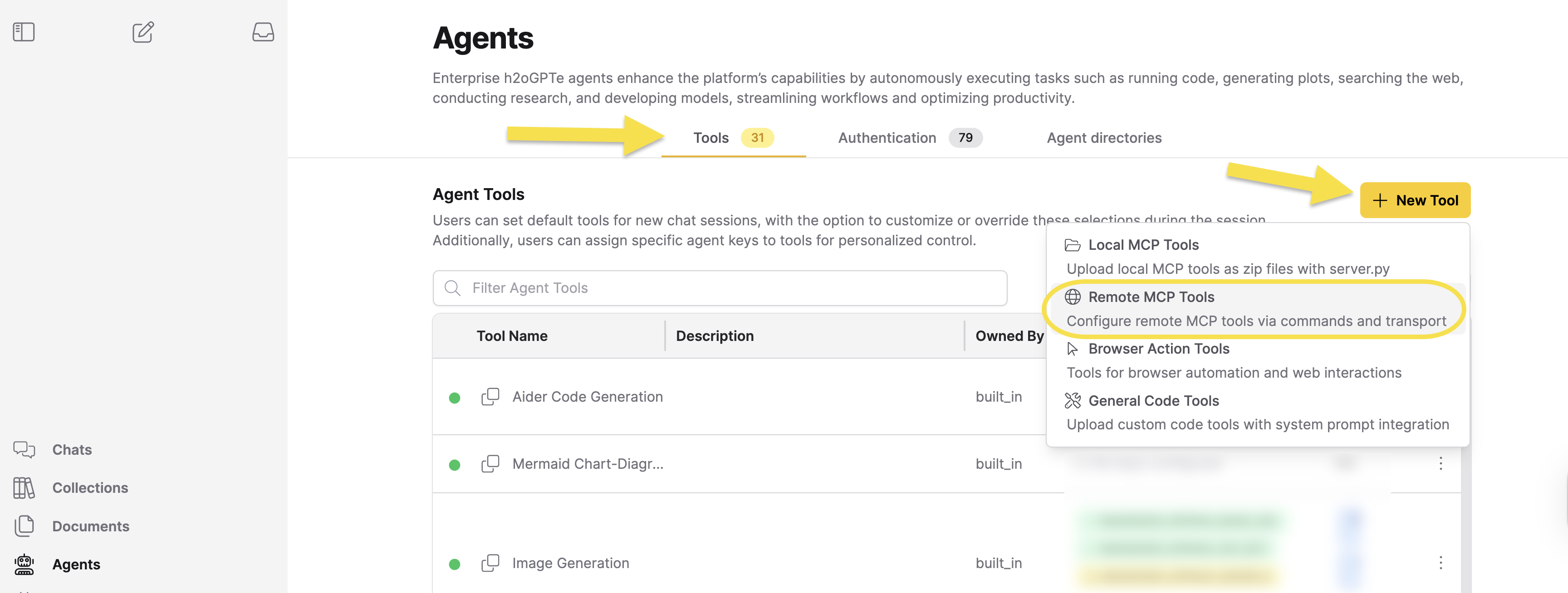
MCP Configuration JSON:
- Enter JSON configuration in standard MCP format or simplified format
- Supports both single and multiple tools
- Optional fields use system defaults if not specified
Configuration format options:
Standard format with mcpServers wrapper:
{
  "mcpServers": {
    "tool-name": {
      "command": "executable",
      "args": ["arg1", "arg2"],
      "env": {
        "API_KEY": "os.environ/API_KEY"
      }
    }
  }
}
Simplified format (without wrapper):
{
  "tool-name": {
    "command": "executable",
    "args": ["arg1", "arg2"],
    "env": {
      "API_KEY": "os.environ/API_KEY"
    }
  }
}
Configuration fields:
command: Executable command to run (required ifurlis not specified)url: Server URL (required ifcommandis not specified)args: Array of command arguments (optional)env: Environment variables usingos.environ/VARIABLE_NAMEsyntax (optional)description: Tool description (optional, but recommended)tool_usage_mode: Array with["runner"],["creator"], or both (optional, defaults to both)allowed_tools: Array of tool names to enable (optional). When set, limits agent access to only the specified tools. The sub-tool selection UI populates this field automatically when you select sub-tools.type: Transport protocol -stdio,http, orsse(optional)
Tool usage modes:
- Runner: Tool executes actions and provides data during conversations (default)
- Creator: Tool helps build or generate other tools or content programmatically
Enable by default:
- When enabled, the tool is automatically available in agent conversations
- When disabled, you must manually enable it per conversation
Use standard launchers like uvx, npx, or python as the command instead of running MCP server binaries directly. This ensures the correct runtime environment is available.
The Connect Remote MCP Server dialog box provides real-time JSON validation with error messages and suggestions for improvements.
After entering a configuration, click Refresh sub-tools to inspect the server and view its available sub-tools before adding. For existing tools that require authentication (using os.environ/ references), the server resolves environment variables securely—no secrets are exposed to the browser.
Click Add Tool to add the remote MCP tool to Enterprise h2oGPTe.
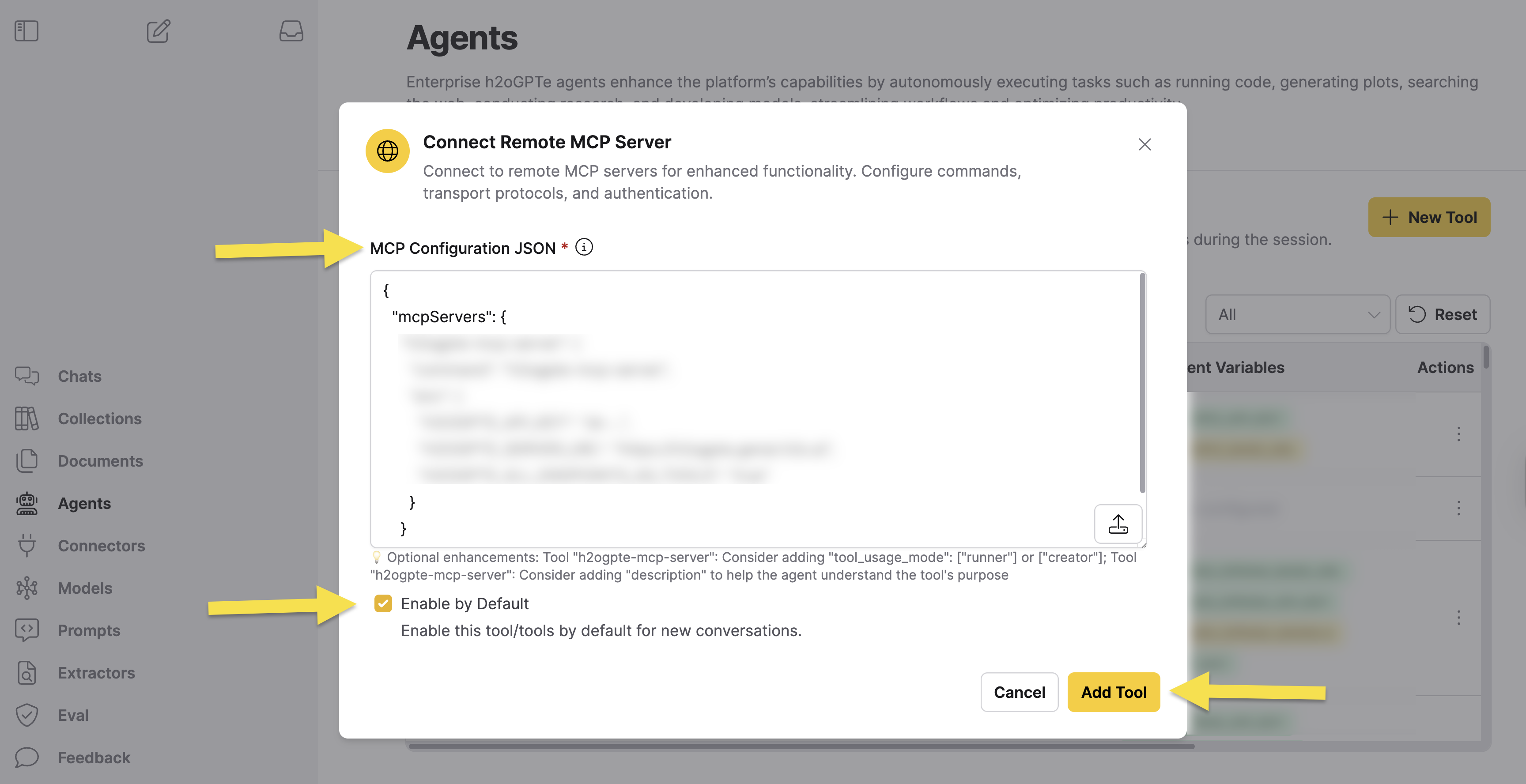
You can configure multiple MCP servers in a single JSON configuration. Each server in the configuration becomes a separate tool that agents can use.
How agents use MCP tools
Enterprise h2oGPTe agents automatically discover and use MCP tools based on the context of user requests. When you interact with an agent:
- Core initializes agent with available tools: The system loads all configured MCP tools that are enabled for your user account (either enabled by default or manually selected)
- Agent sends request to LLM with tool definitions: Your request is sent to the language model along with descriptions of all available MCP tools
- LLM analyzes request and selects tools: The language model analyzes your request and automatically selects which MCP tools to invoke based on tool descriptions, capabilities, and request context
- Tools execute and return results: Selected MCP tools execute their operations and return results back to the agent
- Agent iteratively uses tools as needed: The agent may invoke additional tools in subsequent turns based on previous results, creating a multi-step workflow
- Agent combines results and presents final response: Tool results are combined and formatted into a conversational response presented to you
Example workflows:
- Data analysis: Agent uses a database MCP tool (e.g., MongoDB Atlas) to query data, then uses a visualization tool to create charts
- Content creation: Agent uses a document MCP tool (e.g., Google Docs) to create content, then uses a collaboration tool (e.g., Slack) to share it
- Research tasks: Agent uses a search MCP tool (e.g., Bing Search) to find information, then uses a summarization tool to present findings
Tool selection:
Agents automatically select the most appropriate tools based on:
- Tool descriptions and capabilities
- User request context
- Tool availability and permissions
- Tool usage mode settings (Runner or Creator)
Enable tools by default for frequently used integrations. This allows agents to automatically use them without manual selection in each conversation. For sensitive or specialized tools, disable "Enable by Default" and manually enable them when needed.
MCP tools with custom agents
Custom agents can declare MCP server dependencies in their metadata.json file. When you upload a custom agent, Enterprise h2oGPTe automatically associates matching MCP tools by name. For a step-by-step walkthrough, see Use remote MCP tools with custom agents.
Security considerations
API key management:
- Store credentials in Agents > Authentication, not in configuration files
- Use
os.environ/VARIABLE_NAMEsyntax to reference variables - Rotate keys regularly
- Use least privilege access
Access control:
- User permissions are validated before tool execution
- Tool-specific access restrictions apply
- Network security policies apply to remote servers
Never hardcode API keys or credentials in MCP tool configuration files. Always use the os.environ/VARIABLE_NAME syntax to reference environment variables stored securely in Agents > Authentication.
Receiving session tokens in custom MCP tools
Custom local and remote MCP tools can receive the authenticated user's session tokens automatically at runtime. A tool opts in by declaring the variable names; no manual Assign Keys step in the UI is needed, and any value already assigned by an operator is preserved.
Declaring session token variables
Local MCP tools — add the variable names to your tool's envs.json file. The platform recognizes any key matching the H2OGPT_SESSION_* prefix as a session variable and fills it automatically at runtime.
{
  "H2OGPT_SESSION_EXTERNAL_IDP_TOKEN": ""
}
Inside your tool code, read it as a normal environment variable. Use os.environ.get() with a default: when no token is available, Enterprise h2oGPTe leaves the variable unset rather than setting it to an empty string, so indexing os.environ directly raises a KeyError.
import os
token = os.environ.get("H2OGPT_SESSION_EXTERNAL_IDP_TOKEN", "")
Remote MCP tools — reference the variable as os.environ/<NAME> in the env field of your JSON configuration. Enterprise h2oGPTe scrapes those references to find what the tool declares, and fills the value at runtime. A bare key with an empty-string value declares nothing, so the tool never receives the token.
{
  "my-snowflake-tool": {
    "url": "https://<YOUR_MCP_SERVER>",
    "env": {
      "H2OGPT_SESSION_EXTERNAL_IDP_TOKEN": "os.environ/H2OGPT_SESSION_EXTERNAL_IDP_TOKEN"
    }
  }
}
The env key is the name your server reads, and the os.environ/ reference names the session variable to fill it from. The two can differ: a server that expects SNOWFLAKE_TOKEN uses "SNOWFLAKE_TOKEN": "os.environ/H2OGPT_SESSION_EXTERNAL_IDP_TOKEN".
Usage patterns
Access-only (most common) — for tools calling an external service (Snowflake, Azure, Power BI) that expects the upstream IdP token:
{
  "H2OGPT_SESSION_EXTERNAL_IDP_TOKEN": ""
}
Access + refresh — for long-running tools that manage their own token refresh during a single execution:
{
  "H2OGPT_SESSION_EXTERNAL_IDP_TOKEN": "",
  "H2OGPT_SESSION_EXTERNAL_IDP_REFRESH_TOKEN": ""
}
The external IdP refresh token has wider scope and a longer lifetime than the Keycloak token. Request it only when autonomous token refresh is genuinely required. For single-call tools, prefer access-only and allow the agent to retry on authentication failure.
Mixed — internal and external — for tools that call both h2oGPTe's own API and an external service:
{
  "H2OGPT_SESSION_ACCESS_TOKEN": "",
  "H2OGPT_SESSION_EXTERNAL_IDP_TOKEN": ""
}
Available session variables
| Variable | What it carries |
|---|---|
H2OGPT_SESSION_ACCESS_TOKEN | Keycloak access token (for h2oGPTe's own APIs) |
H2OGPT_SESSION_REFRESH_TOKEN | Keycloak refresh token |
H2OGPT_SESSION_EXTERNAL_IDP_TOKEN | Upstream IdP access token (e.g. PingSSO, Azure AD) |
H2OGPT_SESSION_EXTERNAL_IDP_REFRESH_TOKEN | Upstream IdP refresh token |
The Keycloak session variables (H2OGPT_SESSION_ACCESS_TOKEN, H2OGPT_SESSION_REFRESH_TOKEN) are available in all deployments. The external IdP variables require an administrator to enable the Keycloak Identity Broker feature. See Session token forwarding in the administrator guide.
For an end-to-end example that uses H2OGPT_SESSION_EXTERNAL_IDP_TOKEN, including the tool code, prerequisites, and verification steps, see Query Snowflake with an external IdP token.
Access MCP tools with the Python SDK
You can manage MCP tools programmatically using the h2oGPTe Python client library. The following methods are available:
inspect_mcp_tool: perform live discovery against any server, file, or existing tool (with optional security analysis)list_mcp_tools: query tools from already-configured servers
Inspect an MCP tool
inspect_mcp_tool() is a unified method that supports three modes. Provide exactly one of tool_id, servers, or file_path. You can optionally pass model to specify which LLM runs the security inspection.
Inspect a remote server before adding it:
result = client.inspect_mcp_tool(
    servers={"playwright": {"command": "npx", "args": ["@playwright/mcp@latest"]}},
)
for srv in result["servers"]:
    print(f"{srv['server_name']}: {srv['tool_count']} tools")
    for tool in srv.get("tools", []):
        print(f"  {tool['name']}: {tool.get('description', '')}")
    if srv.get("security"):
        print(f"  Security rating: {srv['security']['llm_security_rating']}")
Inspect a local MCP package file before adding it:
file_path accepts a .py file, a .zip archive, or a .tar.gz archive:
result = client.inspect_mcp_tool(file_path="./my_mcp_server.py")
# Also valid:
# result = client.inspect_mcp_tool(file_path="./my_mcp_server.zip")
# result = client.inspect_mcp_tool(file_path="./my_mcp_server.tar.gz")
for srv in result["servers"]:
    print(f"{srv['server_name']}: {srv['tool_count']} tools")
    if srv.get("security"):
        print(f"  Security: {srv['security']['llm_security_rating']}")
Inspect an existing tool by ID:
result = client.inspect_mcp_tool(tool_id="abc-123")
for srv in result["servers"]:
    print(f"{srv['server_name']}: {srv['tool_count']} tools")
List tools from configured servers
List all tools available from your configured MCP servers:
result = client.list_mcp_tools(config_type="runner")
for server, info in result.get("servers", {}).items():
    print(f"{server}: {info['tool_count']} tools")
config_type:"runner"(tools for conversations) or"creator"(tools for building). Defaults to"runner".include_remote: Whether to include remote MCP servers. Defaults toTrue.server_names: Optional list of server name strings to filter results to specific servers.
What's next?
- MCP server directory - Browse and configure MCP servers
- Agent tool configuration - Built-in agent tools
- Submit and view feedback for this page
- Send feedback about Enterprise h2oGPTe to cloud-feedback@h2o.ai