Select a Collection
Overview
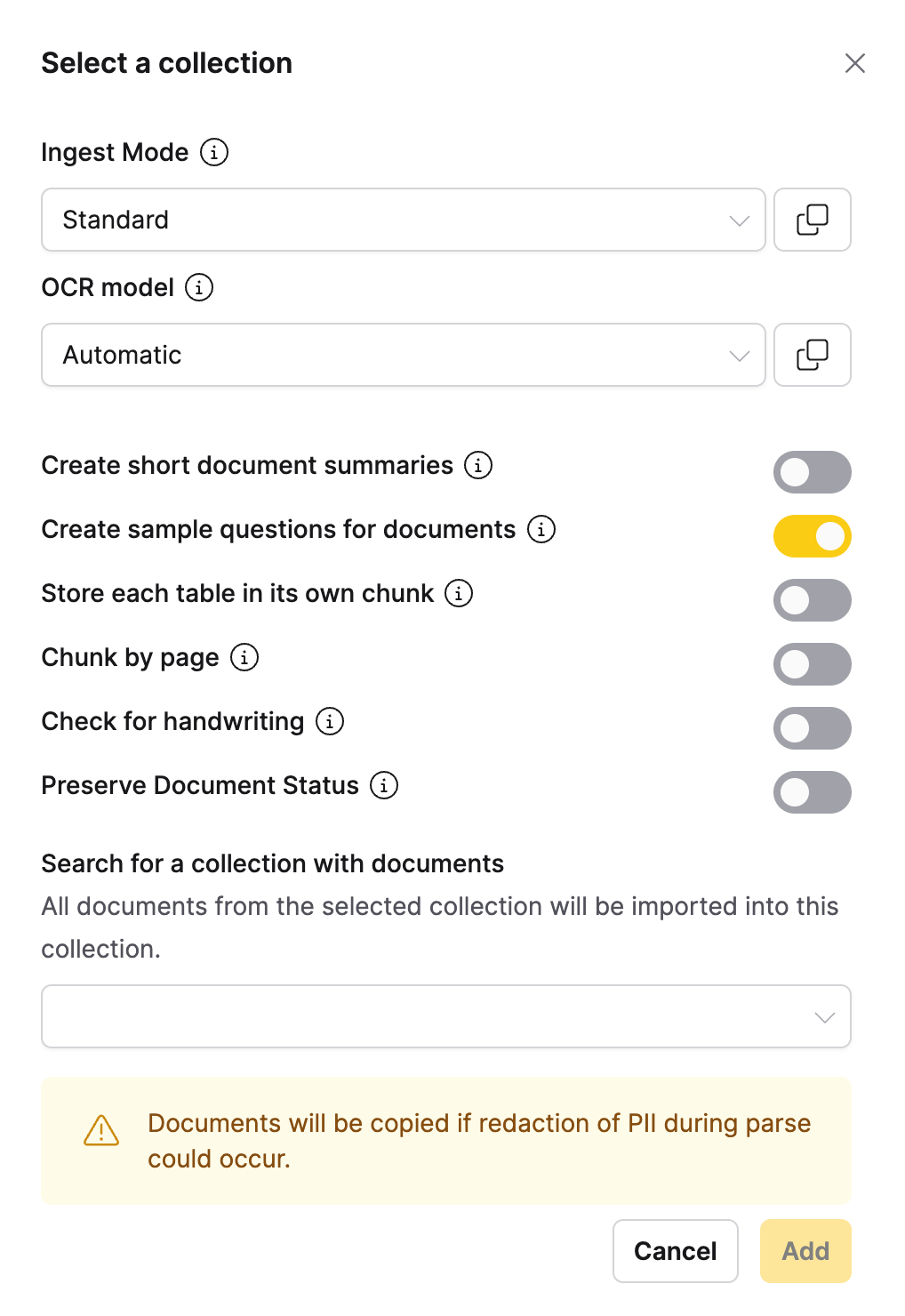
The Select a Collection ingestion method allows you to import all documents from another collection into your current collection. This method is useful for combining collections or creating new collections based on existing ones.
When to use
- Collection merging: When you want to combine multiple collections
- Collection copying: When you want to create a copy of an existing collection
- Template collections: When using a collection as a template for new ones
- Bulk document reuse: When you want all documents from another collection
- Collection organization: When reorganizing your document structure
Configuration parameters
Collection selection
| Option | Default | Description | Use case |
|---|---|---|---|
| Search collections | - (text input) | Search for collections by name or description | Find specific Collections |
| Filter by owner | All owners (dropdown) | Filter collections by owner | Find collections owned by specific users |
| Document count filter | All sizes (dropdown) | Filter by number of documents in collection | Focus on collections of specific sizes |
| Date range filter | All dates (date picker) | Filter by collection creation/modification date | Find collections from specific time periods |
Import options
The following options control how documents are handled during a collection import:
| Option | Default | Description | Use case |
|---|---|---|---|
| Preserve Document Status | Disabled (toggle off) | Retains agent_only status from source documents instead of applying the selected ingest mode. | Maintain agent_only distinction when importing mixed-status collections. |
skip_reparse | false | Re-embeds existing chunks using the target collection's embedding model, without re-fetching files or re-parsing content. Cannot be combined with copy_document=true. | Migrating to a new embedding model without re-parsing content. |
The Preserve Document Status toggle only preserves agent_only status. Documents with other statuses (such as failed or canceled) use the selected ingest mode.
skip_reparse is available via the Python SDK and REST API only — there is no corresponding UI control.
Python SDK example
You can import a collection using the h2oGPTe Python client library:
# Preserve agent_only status from the source collection
job = client.import_collection_into_collection(
    collection_id="<target_collection_id>",
    src_collection_id="<source_collection_id>",
    preserve_document_status=True,
)

# Re-embed without re-parsing — for embedding model migrations
job = client.import_collection_into_collection(
    collection_id="<target_collection_id>",
    src_collection_id="<source_collection_id>",
    skip_reparse=True,
)
For document processing options, see the Shared Document Processing Options section in the main documentation.
REST API example
Pass skip_reparse as a query parameter. The source_collection_id goes in the JSON body.
Endpoint: POST /api/v1/collections/{collection_id}/import_collection_job
# Standard import
curl -X POST "https://YOUR_H2OGPTE_URL/api/v1/collections/<target_collection_id>/import_collection_job" \
  -H "Authorization: Bearer <api_key>" \
  -H "Content-Type: application/json" \
  -d '{"source_collection_id": "<source_collection_id>"}'

# Re-embed without re-parsing — for embedding model migrations
curl -X POST "https://YOUR_H2OGPTE_URL/api/v1/collections/<target_collection_id>/import_collection_job?skip_reparse=true" \
  -H "Authorization: Bearer <api_key>" \
  -H "Content-Type: application/json" \
  -d '{"source_collection_id": "<source_collection_id>"}'
A successful request returns 201 Created with a JobDetails object containing the job ID you can poll for completion.
For the full list of available query parameters (OCR model, ingest mode, lifecycle settings, and more), see the interactive API docs at https://YOUR_H2OGPTE_URL/swagger-ui/ under Collections → create_import_collection_to_collection_job.
- Submit and view feedback for this page
- Send feedback about Enterprise h2oGPTe to cloud-feedback@h2o.ai